For correct functioning of the PROMT program, the .NET Framework 3.5 component should be set which is not a part of Windows 8 and requires separate installation before installation of PROMT translator.

Solution 1
Use the Helper.exe utility. Download the utility from the specified link and run it. The result of correct work of this utility is the installed .NET Framework 3.5 component in the Windows 8 environment.

Note the following:
  • The utility works in the background, no progress bar is displayed, and there is no message indicating the successful completion of its work.
  • The "Program Compatibility Assistant" window can appear after the utility finises, meanwhile the .NET Framework 3.5 component will be set correctly.
  • In case of error, the corresponding message with error code is displayed.
You should check the result of work of the utility. For this purpose, open the list of Windows components (Control Panel - Add or Remove Programs - Add or Remove Windows Components) and make sure that the .NET Framework 3.5 component is enabled.

Solution 2
Use the instruction for manual installation of the .NET Framework 3.5 component in Windows 8 from the Microsoft company: Installing .NET Framework 3.5 in Windows 8.

Information in this article concerns the following products:
PROMT 9, PROMT 9.5
Was this information helpful for you?
All downloaded versions of PROMT products can be installed from a backup copy if the original distribution files were damaged.
All PROMT products distributed on CD or DVD shall be installed from the original media only. If your PROMT product distribution disk was damaged, please order a new distribution disk from PROMT Sales Department (for a fee).
As long as PROMT software products distributed on CD or DVD are protected against illegal reproduction, you cannot install a PROMT product from a non-original CD or DVD.

Information in this article concerns the following products:
PROMT 7, PROMT 8, PROMT 8.5, PROMT 9, PROMT 9.5, PROMT 10, PROMT 11, PROMT 12
Was this information helpful for you?
You can install a dictionary collection purchased in addition to your PROMT product using PROMT Dictionary Installer (comes together with your product). During installation, you will have to activate the collection being installed – see [KB02003] When to activate a PROMT dictionary collection?.

To install a CD-based dictionary collection:
  1. Close all PROMT programs and all applications into which the translation functionality is embedded.
  2. Ins ert the CD-ROM containing the dictionary collection into the CD-ROM drive.
  3. If the dictionary installer does not start automatically, sele ct PROMT Dictionary Installer (Start -> Programs -> PROMT -> Your PROMT 9 Product -> Launch Applications -> PROMT Dictionary Installer).
  4. Follow the installer instructions.

To install a downloaded collection:
  1. Close all PROMT programs and all applications into which the translation functionality is embedded.
  2. Run the executable file of the downloaded collection.
  3. Follow the installer instructions.

Information in this article concerns the following products:
PROMT 9, PROMT 9.5, PROMT 10, PROMT 11, PROMT 12
Was this information helpful for you?

You can install the site license for PROMT products in a corporate network only in the interactive mode, because a unique license number shall be entered for each instance of a PROMT product.

You can also use the procedure for mass deployment of the site license for PROMT products with unique license numbers for each workstation through the Active Directory group policy.

If you are interested in this solution, please contact the PROMT sales department or user support department for additional information. 

e-mail: corporate@promt.com, support@promt.com 

Information in this article concerns the following products:
PROMT 9, PROMT 9.5, PROMT 10, PROMT 11, PROMT 12, PROMT 18
Was this information helpful for you?
If you make changes to your computer hardware without uninstalling the PROMT product, you do not need to reactivate.

Information in this article concerns the following products:
PROMT12, PROMT18, PROMT19, PROMT20, PROMT21

Was this information helpful for you?
The activation code can be reused in case of reinstallation of the activated PROMT product on the same computer.

Information in this article concerns the following products:
PROMT 12, PROMT18, PROMT19, PROMT20, PROMT21 

Was this information helpful for you?
To transfer an activated PROMT product to another computer, first uninstall the product completely, then install it on another computer and activate it.

Information in this article concerns the following products:
PROMT12, PROMT18, PROMT19, PROMT20

Was this information helpful for you?
Try&Buy means a fully functional version of a PROMT product. You can use it free of charge during a certain trial period, for example 30 or 15 days after installation. To continue using the Try&Buy version after expiration of the trial period, you must purchase and register a license (acquire a license number).

Information in this article concerns the following products
PROMT 7, PROMT 8, PROMT 8.5, PROMT 9, PROMT 9.5, PROMT 10, PROMT 11, PROMT 12, PROMT 18

Was this information helpful for you?
The main difference is that you can register the Try&Buy version (purchase a license) and convert it to a product of unlimited validity without software reinstallation, but with a Trial (Try-only) version you cannot. The Trial (Try-only) version must be uninstalled upon expiration of the trial period.

Information in this article concerns the following products:
PROMT 7, PROMT 8, PROMT 8.5, PROMT 9, PROMT 9.5, PROMT 10, PROMT 11, PROMT 12, PROMT 18

Was this information helpful for you?
The only difference between a non-registered Try&Buy version and a fully functional version is the restricted product validity. A non-registered Try&Buy version (without a purchased license) will stop working upon expiration of the trial period. A registered Try&Buy version is completely identical to a full licensed version and has no validity restrictions.

Information in this article concerns the following products:
PROMT 7, PROMT 8, PROMT 8.5, PROMT 9, PROMT 9.5, PROMT 10, PROMT 11, PROMT 12, PROMT 18

Was this information helpful for you?
Yes, you can install the Try&Buy version on multiple computers.
To register your Try&Buy version, you must purchase a license (license number) for each computer.

Information in this article concerns the following products:
PROMT 7, PROMT 8, PROMT 8.5, PROMT 9, PROMT 9.5, PROMT 10, PROMT 11, PROMT 12, PROMT 18

Was this information helpful for you?
Yes, you can.
To convert the Try&Buy version to a fully functional version of unlimited validity, you have to register it (purchase a license).

Information in this article concerns the following products:
PROMT 7, PROMT 8, PROMT 8.5, PROMT 9, PROMT 9.5, PROMT 10, PROMT 11, PROMT 12, PROMT 18

Was this information helpful for you?
Try&Buy version registration means purchasing a license (license number).
The Try&Buy version registration procedure is easy and includes the following steps:
  1. Purchase a license (license number) for the Try&Buy product.
  2. Register the license:
  • Click Register in the dialog that appears when launching the PROMT software.
  • In the Registration window, enter the purchased license number and click Register.
After registration, you have to activate your product. Please refer to articles on PROMT product activation.

Information in this article concerns the following products:
PROMT 7, PROMT 8, PROMT 8.5, PROMT 9, PROMT 9.5, PROMT 10, PROMT 11, PROMT 12, PROMT 18

Was this information helpful for you?
Yes, you can register the Try&Buy version after expiration of the trial period without any restrictions.

Information in this article concerns the following products:
PROMT 7, PROMT 8, PROMT 8.5, PROMT 9, PROMT 9.5, PROMT 10, PROMT 11, PROMT 12, PROMT 18

Was this information helpful for you?
Non-registered Try&Buy version applications will stop working after expiration of the trial period.
However, you can register (purchase a license) your Try&Buy version after expiration of the trial period.

Information in this article concerns the following products:
PROMT 7, PROMT 8, PROMT 8.5, PROMT 9, PROMT 9.5, PROMT 10, PROMT 11, PROMT 12, PROMT 18

Was this information helpful for you?
Trial (Try-only) version is a full-featured trial version of a PROMT product that can be used free of charge for a trial period (e.g. 45 days from the date of installation).
The main purpose of the demo is to explore the possibilities of the PROMT translator and decide to purchase a full version with an unlimited term of use. After the end of the trial period, the demo stops working and must be uninstalled.

Information in this article concerns the following products:
PROMT12, PROMT18, PROMT19, PROMT20, PROMT21

Was this information helpful for you?
Trial version differs fr om the full version only by limiting the duration of use.
The full license version has no lim it on the period of use, and the demo has a limited period of use during which you must decide to purchase the full license version.

Information in this article concerns the following products:
PROMT12, PROMT18, PROMT19, PROMT20, PROMT21
Was this information helpful for you?
Yes, you can install a demo on multiple computers.

Information in this article concerns the following products:
PROMT 12, PROMT 18, PROMT 19, PROMT 20, PROMT21

Was this information helpful for you?
No.
Trial (Try-only) version applications will stop working after expiration of the trial period.

Information in this article concerns the following products:
PROMT 12, PROMT 18, PROMT 19, PROMT 20, PROMT21

Was this information helpful for you?
No.
The Trial (Try-only) version provides no mechanisms to remove validity restrictions.

Information in this article concerns the following products:
PROMT12, PROMT18, PROMT19, PROMT20, PROMT21

Was this information helpful for you?
PROMT 9 products are fully compatible with Windows 7 and labeled with Microsoft's "Compatible with Windows 7" logo.

Information in this article concerns the following products:
PROMT 9, PROMT 9.5

Was this information helpful for you?
PROMT 9 and PROMT 9.5 products can be used on Windows 8, but before installation you should perform the actions described in [KB01012] How to install PROMT in Windows 8?.

Information in this article concerns the following products:
PROMT 9, PROMT 9.5

Was this information helpful for you?
Problem
In some translation directions, texts cannot be translated at all. The translation is not displayed on the screen, or the "Error occurred while translating" message appears. But other translation directions work properly.

Cause
The name of the product installation folder contains non-English characters, for example, Cyrillic characters.

Solution
Reinstall the PROMT product to a folder whose name does not contain non-English characters.

Information in this article concerns the following product versions
PROMT 9, PROMT 9.5, PROMT 10, PROMT 11, PROMT 12, PROMT 18

Was this information helpful for you?
Problem
When launching the main application of the PROMT 9.0 product (with the same name as your PROMT 9.0 product, for example, PROMT Professional 9.0) on Windows 7, the following message appears: “PROMT Main Application has encountered a problem and needs to close. We are sorry for the inconvenience” or “Runtime Error” of MS Visual C++ Runtime Library.

Solution
To solve the problem, you need to update the files of the PROMT main application.
  1. Close the “Your PROMT 9 Product” application.
  2. Download the mappfix.zip archive. Extract all files from the archive into some folder and run mappfix.js.
  3. Restart the “Your PROMT 9 Product” application.

Note
The mappfix.zip archive contains the updating of the PROMT main application and of the My PROMT service.

Information in this article concerns the following products:
PROMT 9

Was this information helpful for you?
Problem
The Translate Outgoing Message command in the Extras menu does not work in the Skype 4.2 message window: the "No text for translation" message appears during translation of an outgoing message from the Skype message box.

Cause
The "Translate upon Event" mode of PROMT Translator does not work in Skype 4.2 and later.

Solution
Use the Talks menu command: Talks -> Extras -> Translate Outgoing Message.
You can also set the automatic mode of outgoing messages translation in PROMT plug-in setup.

Information in this article concerns the following products:
PROMT 9, PROMT 9.5

Was this information helpful for you?
Problem
When launching PROMT NET, the following error message appears: "You have no permission to run this application. Please contact the PROMT NET System Administrator".

Cause
Possible causes:
  • The user does not have permissions to start this application.
  • The license file was not loaded during initial server setup. Each PROMT NET delivery contains a license file which stores license restrictions according to your PROMT NET licensing agreement. The license file must be loaded to the PROMT NET server during PROMT NET server initial setup.
Solution
  1. In PROMT NET User Manager, check whether the user has permissions to run this application.
  2. Load the license file to the PROMT NET server using PROMT NET License Manager.
These operations are described in detail in the PROMT NET Administrator's Guide.

Information in this article concerns the following product versions
PROMT NET 7, PROMT NET 8, PROMT NET 8.5, PROMT NET 9, LSP 9, PROMT NET 9.5, LSP 9.5

Was this information helpful for you?
Problem
When launching a PROMT NET application, the following error message appears: "Error occurred while initializing the kernel of translation (0x80070721)".

Cause
Possible causes:
  • An incorrect PROMT NET server name is specified in the Server Login window.
  • The correct IP address of the PROMT NET server cannot be derived from its name due to, for example, changes in the server name or server IP address, or because of DNS faults.
  • There is no registration of the Service Principal Name for the account of the PROMT effective user – only for ÎÑ Windows Server 2008.
Solution
To eliminate this problem, try one of solutions provided below. In case of success, you do not need to try other solutions.
  1. Check whether the PROMT NET server name specified in the Server Login window is correct.
  2. Clear the local DNS cache on the computer using the ipconfig/flushdns command and make sure that the DNS service returns a correct IP address for the PROMT NET server on the computer where the error occurs using the nslookup utility.
  3. In the Server Login window, specify the actual IP address of the PROMT NET server.
  4. Fulfill registration of the Service Principal Name for the account of the PROMT effective user for all PROMT DCOM-servers (only for ÎÑ Windows Server 2008).

    For this, type the following command in the command line (run it with the domain administrator's rights):

    setspn –A DCOM_server/Server_name Domain_name\Account_name

    where:
    • DCOM_server – PNETSvr, PrmtSvr, prmedsvr;
    • Server_name – name of the NetBIOS server where PROMT NET is installed;
    • Domain_name – name of the Active Directory domain;
    • Account_name – name of the account of the PROMT effective user.

    For example: setspn –A PrmtSvr/testserver promt\p9service

Information in this article concerns the following products:
PROMT NET 7, PROMT NET 8, PROMT NET 8.5, PROMT NET 9, LSP 9, PROMT NET 9.5, LSP 9.5

Was this information helpful for you?
Problem
When starting the Server Setup configuration utility, the following error message appears: "You are not from Domain Administrators global group. Server Setup must be run only by a domain administrator."

Cause
For correct operation of PROMT NET DCOM services, they must be run under a domain user account (PROMT NET effective user). The PROMT NET Config utility is able to automatically create a new domain user, so only domain administrators may run the utility.

Solution
Download the special build of the utility that does not ask for domain administrator permissions to run: PNetConfig_9_0_57.zip.
If you select the option for automatic creation of a PROMT NET effective user domain account while using the special utility build, you will have to specify the domain administrator information to perform this operation.
For details on using the Server Setup utility, refer to PROMT NET Administrator's Guide.

Information in this article concerns the following products:
PROMT NET 9, LSP 9, PROMT NET 9.5, LSP 9.5

Was this information helpful for you?
Problem
When launching a PROMT NET application, the following error message appears: "Error occurred while initializing the kernel of translation (0x80070776)".

Cause
Possible causes:
  • The DNS cache on the PROMT NET server contains an incorrect IP address for the client computer. This may be because of dynamic IP assignment using DHCP.
  • A problem with DNS and/or DHCP resulting in incorrect determination of the client IP address on the PROMT NET server.
  • DCOM is disabled on the client computer.
Solution
To eliminate this problem, try one of solutions provided below. In case of success, you do not need to try other solutions.
  1. Clear the local DNS cache on the PROMT NET server using the ipconfig/flushdns command and make sure that the DNS service returns a correct client IP address on the PROMT NET server using the nslookup utility.
  2. Clear the local DNS cache on the client computer using the ipconfig/flushdns command and make sure that the DNS service returns a correct IP address for the PROMT NET server to which you are connecting using the nslookup utility.
  3. Check DNS and DHCP service operation and make necessary changes if the client service setup contains an incorrect or different IP address.
  4. Enable DCOM on the client computer: open the Component Services (dcomcnfg.exe) and check the "Enable DCOM on this Computer" box in My Computer properties on the Default Properties tab.
Information in this article concerns the following products:
PROMT NET 7, PROMT NET 8, PROMT NET 8.5, PROMT NET 9, LSP 9, PROMT NET 9.5, LSP 9.5

Was this information helpful for you?
Problem
When launching a PROMT NET application, the following error message appears: "Error occurred while initializing the kernel of translation (0x8000401A)".

Cause
The PROMT NET server process cannot be started on the server because of problems with PROMT NET server setup.
Possible causes:
  • Parameters of the PROMT NET effective user account are set incorrectly for PROMT NET DCOM servers on the Identity tab; for example, the password for the effective user account has been changed.
  • The PROMT NET effective user account is not included in the Guests local group on the PROMT NET server.
  • The PROMT NET effective user account has no permission to write to the folder specified by the TEMP environment variable on the PROMT NET server.
  • The PROMT NET effective user account has no "Log on as a batch job" permission in local policies on the PROMT NET server.
Solution
Repeat the complete setup of the PROMT NET server using the Server Setup utility (PNetConfig.exe) and ensure that correct information in entered on all utility screens. Pay particular attention to proper setting of the PROMT NET effective user account and password.

If the problem cannot be solved with the setup, try the solutions provided below. In case of success, you do not need to try other solutions.
  1. Open the Component Services (dcomcnfg.exe) on the PROMT NET server and check the settings of PROMT NET DCOM servers:
  • PrmtSvr
  • PNETSvr
  • Prmedsvr
  • PrmtDDB
  • PitmSvr
      On the Identity tab, "This user" must be selected and the PROMT NET effective user domain account with the correct password must be specified.
      On the Security tab in the "Launch and Activation Permissions" and Access Permissions groups, local and remote startup, activation, and access must be allowed for all PROMT NET users, as well as for the predefined SYSTEM and INTERACTIVE system users, and for the PROMT NET effective user.
  • Check whether the PROMT NET effective user account is added to the Guests group on the PROMT NET server.
  • Make sure that the PROMT NET effective user account has permissions to write to the folder specified by the TEMP environment variable on the PROMT NET server.
  • Open the Local Security Policy on the PROMT NET server and make sure that the PROMT NET effective user account has the "Log on as a batch job" permission assigned.
  • Make sure that all PROMT NET users, and also the PROMT NET effective user, are included in the DCOM Users local group on the PROMT NET server.
  • Check other settings listed in the "Completing Server Setup (PROMT NET Config)" section of the PROMT NET Administrator's Guide.
  • Information in this article concerns the following products:
    PROMT NET 7, PROMT NET 8, PROMT NET 8.5, PROMT NET 9, LSP 9, PROMT NET 9.5, LSP 9.5

    Was this information helpful for you?
    Problem

    When launching PROMT NET, the following error message appears: "You have no permission to access the PROMT NET server. Please contact the System Administrator".

    Common cause

    PROMT NET uses the Distributed COM (DCOM) protocol for communications between client workstations and the server. This error may be caused by incorrect DCOM settings on the server and/or workstations.

    Cause 1

    Users have no access to the server at the DCOM network protocol level. The PROMT NET server part had not been properly setup right after the installation or adding of new users/user groups in the User Manager application.

    Solution 1
    1. Launch the Server Login application on the PROMT NET server.
    2. In step 2, add accounts for the users or user groups to permit access to the PROMT NET system.
    3. In step 3, check whether the PROMT NET effective user account and password are correct.


    Cause 2

    Incorrect DCOM settings on the PROMT NET server.

    Solution 2

    Check the DCOM settings on the PROMT NET server:

    1. Open the Component Service (dcomcnfg.exe) on the PROMT NET server.
    2. Check the settings of PROMT NET DCOM servers:
    • PNETSvr
    • prmedsvr
    • PrmtSvr
    • PrmtDDB (only for PROMT NET 7.0/8.0/8.5)
    • PitmSvr (only for PROMT NET 7.0)

    For each DCOM server, do the following:
      1. Open the Security tab and set the permissions:
    • Local access
    • Remote access
    • Start
    • Activation

    for the following accounts:
    • PROMT NET effective user
    • PROMT NET users
    • PROMT NET user groups

  • Open the Identity tab and make sure that the PROMT NET effective user account is specified as the account to be used when starting the PROMT NET DCOM server.


  • Cause 3

    Incorrect DCOM settings on the PROMT NET workstation.

    Solution 3

    Check the DCOM settings on the workstation:

    1. Open the Component Service (dcomcnfg.exe) on the PROMT NET server.
    2. In My Computer, open the Properties window:
        1. Open the Default Properties tab and set the values of the following parameters:
    • "Enable DCOM on this Computer" – enabled;
    • Authentication – Connect;
    • Impersonation – Identify.

  • Open the Security tab and set the permissions:
    • Local access
    • Remote access
    • Start
    • Activation

    for the following accounts:
    • PROMT NET effective user
    • All group
    • Anonymous logon


    Cause 4

    The PROMT NET effective user account has no "Log on as a batch job" permission in the local policy on the PROMT NET server.

    Solution 4
    1. Open the Local Security Policy (secpol.msc) on the PROMT NET server.
    2. Click Local Policies -> User Rights Assignment.
    3. Add the PROMT NET effective user account to the list of accounts of the "Logon as a batch job" policy.


    Cause 5

    The PROMT NET effective user account has no "Access this computer from the network" permission in the local policy on the PROMT NET workstation.

    Solution 5
    1. Open the Local Security Policy (secpol.msc) on the PROMT NET workstation.
    2. Click Local Policies -> User Rights Assignment.
    3. Add the PROMT NET effective user account to the list of accounts of the "Access this computer from the network" policy.


    Cause 6

    On the PROMT NET server, a firewall is enabled that prevents operation of applications via the DCOM protocol.

    Solution 6
    In the firewall setup on the PROMT NET server, open the following ports:
    • TCP 135 (RPC service)
    • TCP 1024-65535 (for Windows Server 2000-2003), 49152-65535 (for Windows Server 2008)


    Cause 7

    On the PROMT NET workstation, a firewall is enabled that prevents operation of applications via the DCOM protocol.

    Solution 7
    In the firewall setup on the workstation, create the following exceptions (by the example of the standard Windows firewall):
    1. Open the 135 TCP port for outbound connections (the PROMT NET server address or server subnet address must be specified in the exception parameters).
    2. Create exceptions for all executable PROMT NET Client applications (exe files) by specifying the paths to the executable files.


    Information in this article concerns the following products:
    PROMT NET 7, PROMT NET 8, PROMT NET 8.5, PROMT NET 9, LSP 9, PROMT NET 9.5, LSP 9.5

    Was this information helpful for you?
    Problem
    When trying to synchronize the PTS linguistic data with the PROMT Desktop Translator using the PTS Data Synchronization application, the following error occurs: "Failed to connect to the Web service."

    Cause 1
    The PTS server and the PROMT Desktop Translator are in the same domain, but there is no such user account in the PTS user database.

    Solution 1
    Add the user account to the PTS user database.

    Cause 2
    The PTS server and the PROMT Desktop Translator are not in the same domain.

    Solution 2
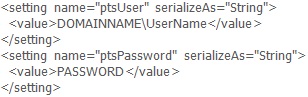
    1. Enter the user's account data (DOMAINNAME, UserName and PASSWORD) for the user that starts the PTS Data Synchronization application. To do this, change the usersettings section of the \ProgramFiles\PRMT9\PTSSYNC\PTSsync.exe.config file using Notepad:


    2. Add the user account to the PTS user database.
    3. Information in this article concerns the following products:
      PROMT 9.0, PROMT 9.5, PTS 9.0, PTS 9.5

    Was this information helpful for you?
    The PROMT for Microsoft Office application adds a tab with translation functions to Microsoft Office 2007 and Microsoft Office 2010 (32-bit version) and a corresponding toolbar to Microsoft Office 2000-2003.

    PROMT products do not support embedding of the translation functions into the 64-bit version of Microsoft Office 2010.

    Information in this article concerns the following products:
    PROMT 9, PROMT 9.5

    Was this information helpful for you?
    Problem
    The PROMT Translator toolbar with translation functions is not displayed in Microsoft Office XP/2003 applications.

    For PROMT 7-9.5 this solutions can also be used for Microsoft Office 2000.

    Attention!
    Before performing the listed below actions, take advantage of the Microsoft Fix it Center which unites within one tool numerous mechanisms of diagnostics and solution of problems. Microsoft Fix it Center automatically finds and liquidates many widespread malfunctions in work of equipment, operating system and software. Besides, thanks to real-time checking of the status of the system and timely loading of updating, Microsoft Fix it Center allows to prevent emergence of new problems. Follow the hyperlink to load the installer: Microsoft Fix it Center

    Cause
    The PROMT plug-in is in the list of Microsoft Office disabled items. This can be due to, for example, a plug-in initialization fault occurred during the previous launch of the Microsoft Office application.

    Solution
    Remove the PROMT plug-in from the list of Microsoft Office disabled items:
    1. Launch the Microsoft Office application (for example, Word) in which the PROMT toolbar is not displayed.
    2. Select Help -> About Microsoft Office Word.
    3. In the About Microsoft Office Word window, click Disabled Items.
    4. Select PROMT in the list of disabled items and click Enable.
    5. Restart the Microsoft Office application.
    6. The PROMT Translator tab with translation functions will appear in the Microsoft Office application.
    Information in this article concerns the following products:
    PROMT 7, PROMT 8, PROMT 8.5, PROMT 9, PROMT 9.5, PROMT 10, PROMT 11, PROMT 12

    Was this information helpful for you?
    Problem
    In Microsoft Word 2010 translation of text in the translation pane does not work. The pane opens, but instead of translation there is a message "One of the values passed to this method or property is out of range".

    Solution
    1. Close all running Microsoft Word 2007-2010 applications with embedded translation functions.
    2. Download the smfix.zip archive. Extract all files from the archive into some folder and run smfix.js.
    3. Restart Microsoft Word 2010.

    Information in this article concerns the following products:
    PROMT 9

    Was this information helpful for you?
    Problem
    The PROMT Translator tab with translation functions is not displayed in Microsoft Office 2007-2016 applications. Microsoft Office applications with embedded PROMT Translator functions might hang or abort during launching. To eliminate this problem, try one of solutions provided below. In case of success, you do not need to try other solutions.

    For PROMT 9 and later versions this solutions can also be used for Microsoft Office 2010.

    For PROMT 10-11 this solutions can also be used for Microsoft Office 2013. For PROMT 12-18 this solutions can also be used for Microsoft Office 2016.

    Plug-ins Manager
    Translation functions can be embedded using the following application:
    • PROMT 9: PROMT Plug-ins Manager (Start -> Programs -> PROMT -> Your PROMT Product -> Launch Applications -> PROMT Plug-ins Manager)


    Cause 1
    Translation functions are not embedded into Microsoft Office.

    Solution 1
    To embed translation functions into Microsoft Office:
    1. Close all windows of Microsoft Office applications.
    2. Launch PROMT Plug-ins Manager and check the box next to Microsoft Office.
    3. Launch a Microsoft Office application, for example Word.
    4. The PROMT Translator tab with translation functions will appear in the Microsoft Office application ribbon.

    Attention!
    Before performing the listed below actions, take advantage of the Microsoft Fix it Center which unites within one tool numerous mechanisms of diagnostics and solution of problems. Microsoft Fix it Center automatically finds and liquidates many widespread malfunctions in work of equipment, operating system and software. Besides, thanks to real-time checking of the status of the system and timely loading of updating, Microsoft Fix it Center allows to prevent emergence of new problems. Follow the hyperlink to load the installer: Microsoft Fix it Center
    Cause 2
    Translation functions are embedded into Microsoft Office by PROMT Plug-ins Manager, but the PROMT add-in is not displayed in the Microsoft Office application ribbon.

    Solution 2
    1. Close all windows of Microsoft Office applications.
    2. Download the SmartoolXSupport.exe program and run it. The IssuesFixerLog_”date”_”time”.log file will be created, which allows to analyse the result.

    3. Note: SmartoolXSupport is a universal program for solving the problem of embedding translation functions which automatically diagnoses and solves the problems.

    4. Launch a Microsoft Office application, for example Word.
    5. The PROMT Translator tab with translation functions will appear in the Microsoft Office application ribbon.

    If after executing this instruction the PROMT Translator tab with translation functions will not appear in the Microsoft Office application ribbon, try one of solutions provided below.

    Cause 3
    Translation functions are embedded into Microsoft Office, but the PROMT add-in is disabled in Microsoft Office.

    Solution 3
    To enable the PROMT add-in in Microsoft Office (e.g. Microsoft Word):
    1. In Microsoft Word, select Office (the round button in the upper left corner) -> Word Options. Note: In Outlook, select Tools -> Trust Center.
    2. Select Add-Ins and make sure that the PROMT for Microsoft Office add-in is not included in the Disabled Application Add-ins group.
    3. If the PROMT add-in is listed among disabled add-ins, select Disabled Items in the Manage drop-down list and click Go.
    4. In the Disabled Items window, select PROMT for Microsoft Office and click Enable, then click Close.
    5. Restart Microsoft Word.
    6. The PROMT Translator tab with translation functions will appear in the Microsoft Office application ribbon.
    Cause 4
    Translation functions are embedded into Microsoft Office, but the PROMT add-in is inactive in Microsoft Office or missing permissions to run.

    Solution 4
    To activate the PROMT add-in in Microsoft Office (e.g. Microsoft Word) and add permissions to run:
    1. In Microsoft Word, select Office (the round button in the upper left corner) -> Word Options. Note: In Outlook, select Tools -> Trust Center.
    2. Select Add-Ins and make sure that the PROMT for Microsoft Office add-in is not included in the Inactive Application Add-ins group.
    3. If the PROMT add-in is among inactive add-ins, quit Word.
    4. Undo embedding of translation functions into Microsoft Office. To do this, launch PROMT Plug-ins Manager and uncheck all boxes next to Microsoft Office.
    5. Download the caspol.zip archive, extract the caspol.js file and run it. The execution result must be "OK". If you get another result, check whether caspol.js is launched with administrator's rights.
    6. Embed translation functions into Microsoft Office. To do this, launch PROMT Plug-ins Manager and check the boxes next to Microsoft Office.
    7. Launch Microsoft Word.
    8. The PROMT Translator tab with translation functions will appear in the Microsoft Office application ribbon.
    Cause 5
    The .NET Programmability Support component required by PROMT add-ins is not installed in Microsoft Office.

    Solution 5
    1. Close all running programs.
    2. On the Windows Control Panel, open the list of installed Windows programs, select Microsoft Office and click Change.
    3. In the Microsoft Office installer, check the box next to the "Add or Remove Components" option and click Next.
    4. In the Microsoft Office component tree, open the node of each Office application and select .NET Programmability Support component installation.
    5. Wait for completion of Microsoft Office installation.
    6. Launch PROMT Plug-ins Manager and make sure that checkboxes next to Microsoft Office applications have been selected.
    7. The PROMT Translator tab with translation functions will appear in the Microsoft Office application ribbon.
    Cause 6
    Another PROMT 9.0 product (for example, Trial or Try&Buy version) was previously installed on this computer.

    Solution 6
    1. Close all windows of Microsoft Office applications.
    2. Undo embedding of translation functions into Microsoft Office. To do this, launch PROMT Plug-ins Manager and uncheck the box next to Microsoft Office.
    3. Download the INTEROP.zip archive, extract the Interop.PROMTPROLib.dll file into the folder with installed Microsoft Office translation extension (for example, C:\Program Files\PRMT9\SMARTOOLX).
    4. Launch PROMT Plug-ins Manager and check the box next to Microsoft Office.
    5. Launch a Microsoft Office application, for example Word.
    6. The PROMT Translator tab with translation functions will appear in the Microsoft Office application ribbon.
    Cause 7
    The Visual Studio 2005 Tools for Office Second Edition Runtime (VSTOR) component required by PROMT extensions is not installed or installed incorrectly.

    Solution 7
    Install (reinstall) Visual Studio 2005 Tools for Office Second Edition Runtime:
    1. Download the VSTO2005SE.zip archive.
    2. Extract vstor.exe from the archive, run it and follow the installer instructions.
    Cause 8
    Probably, Microsoft Office 2007/2010 installation is damaged.

    Solution 8
    Install (restore) Microsoft Office 2007/2010:
    • In Windows XP: launch Start -> Control Panel -> Add or Remove Programs, find Microsoft Office 2007/2010, click Change, and choose Repair in the Microsoft Office installation window.
    • In Windows Vista/7: launch Start -> Control Panel -> Programs, find Microsoft Office 2007/2010, select Change in the context menu, and choose Repair in the Microsoft Office installation window.


    Information in this article concerns the following products:
    PROMT 9, PROMT 9.5, PROMT 10, PROMT 11, PROMT 12, PROMT 18

    Was this information helpful for you?
    Problem
    When you try to translate a presentation in Microsoft PowerPoint, an error message occurs: "Error HRESULT E_FAIL has been returned from a call to a COM component". When you translate such file in the PROMT Batch Translator application, the file with translation cannot be opened in Microsoft PowerPoint.

    Solution
    Update the TransIF.dll module for translating PowerPoint-documents.
    1. Download the new TransIF.dll file from the TransIF.zip archive.
    2. Replace the TransIF.dll file in the folder with the installed translation module (for example, C:\Program Files\PRMT9\PRMTIF\TransIF.dll) with the updated version.
    3. Make sure that the process of translation is correct in PowerPoint and in the PROMT Batch Translator application.

    Information in this article concerns the following products:
    PROMT 9

    Was this information helpful for you?
    Problem
    When you try to paste the contents of Clipboard in Microsoft Word 2003, the PROMT icon appears which replaces the source text.

    Solution
    Uodate the translation plug-in for Microsoft Office 2003.
    1. Close all windows of Microsoft Office 2003 applications.
    2. Undo embedding of translation functions into Microsoft Office. To do this, launch PROMT Plug-ins Manager and uncheck the box next to Microsoft Office 2003.
    3. Download the Smartool8.zip archive and extract the Smartool8.dll file.
    4. Replace the Smartool8.dll file in the folder with installed translation extension (for example, C:\Program Files\PRMT9\SMARTOOL).
    5. Launch PROMT Plug-ins Manager and check the box next to Microsoft Office 2003.
    6. Verify the work of Clipboard in Microsoft Word 2003.
    Information in this article concerns the following products:
    PROMT 9

    Was this information helpful for you?
    The PROMT for Internet Explorer application adds a toolbar with translation functions to Internet Explorer 5-8 (only 32-bit versions).

    Information in this article concerns the following products:
    PROMT 8.5, PROMT 9

    Was this information helpful for you?
    The PROMT for Internet Explorer application adds a tab with translation functions to Internet Explorer 9 (32-bit version).

    If an error occurs while translating a web-page in Internet Explorer 9, please address [KB9006] "Error occurred in the module of translation" error message in Internet Explorer 9.

    Information in this article concerns the following products:
    PROMT 9.0
    Was this information helpful for you?
    The PROMT for Mozilla Firefox application adds a toolbar with translation functions to Mozilla Firefox 1.5-24.

    Information

    Updated PROMT plug-ins for future versions of Mozilla FireFox will be installed through browser's plug-ins manager.

    Information in this article concerns the following products:
    PROMT 9, PROMT 9.5

    Was this information helpful for you?
    The PROMT plug-in for Adobe Acrobat/Adobe Reader supports translation of a selected text within the PDF document in a separate pop-up window. The translation can be copied into Windows clipboard and inserted into any Windows application supporting insertion from the clipboard.

    In PROMT Professional 9, PROMT Freelance 9, PROMT Language Service Provider 9 you can translate the whole PDF document in PROMT Translator, PROMT Translator Lite, and PROMT Batch Translator. The translation will be saved as an RTF document.
    PDF-to-PDF translation is not supported.

    Information in this article concerns the following products:
    PROMT 9, PROMT 9.5

    Was this information helpful for you?
    The PROMT for Adobe Acrobat application embeds translation functions into Adobe Reader and Adobe Acrobat 6-9.

    Information in this article concerns the following products:
    PROMT 9

    Was this information helpful for you?
    Problem
    PDF documents cannot be translated in Adobe Reader or Adobe Acrobat.

    Cause
    The following causes are possible:
    • The text fragment you want to translate is not selected.
    • The document is protected from copying or text extraction.
    • The document is password-protected.
    • The document is a scanned page containing bitmapped image, not a text layer.

    Solution
    The procedure is as follows:
    1. Make sure that the PDF document is not protected against copying or text extraction.
    2. Make sure that the PDF document is not password-protected.
    3. Select a text fragment and then click Translate.
    4. The translation of the selected text will appear in a separate window.
    Information in this article concerns the following products:
    PROMT 8, PROMT 8.5, PROMT 9, PROMT 9.5

    Was this information helpful for you?
    1. Close all Adobe Reader or Adobe Acrobat windows.
    2. Launch PROMT Plug-ins Manager (Start -> Programs -> PROMT -> Your PROMT 9 Product -> Launch Applications -> PROMT Plug-ins Manager) and check the box next to Adobe Reader or Adobe Acrobat.
    3. Launch Adobe Reader or Adobe Acrobat.
    4. In the Adobe Reader or Adobe Acrobat toolbar area, the PROMT Translator toolbar will appear containing the translation functions, and the Plug-ins menu will contain the PROMT Translator submenu.
    Information in this article concerns the following products:
    PROMT 9, PROMT 9.5

    Was this information helpful for you?
    Problem
    Translation functions are embedded into Adobe Reader or Adobe Acrobat, but the toolbar is not displayed in Adobe Reader or Adobe Acrobat.

    Cause
    The PROMT toolbar is disabled in Adobe Reader or Adobe Acrobat.

    Solution
    To show the PROMT toolbar:
    1. Launch Adobe Reader or Adobe Acrobat.
    2. Right-click on the toolbar area and check the box next to PROMT Translator in the shortcut menu.
    See also: [11009] How to embed translation functions into Adobe Reader or Adobe Acrobat?.

    Information in this article concerns the following products:
    PROMT 9, PROMT 9.5

    Was this information helpful for you?
    Problem
    When you try to translate a PDF document, the indicator of the translation process reaches the middle, the process interrupts and appears the page of selecting the files.

    Solution
    Update the module for translating PDF-documents on the PTS server.
    1. Run iisreset /stop in the command line.
    2. Download the Pdf2If.zip archive.
    3. Extract the Pdf2If.dll file (version 9.0.10.0).
    4. Replace the Pdf2If.dll file in the folder with the installed translation module (for example, C:\Program Files\PRMT9\PRMTIF\Pdf2If.dll) with the updated version.
    5. Run iisreset /restart in the command line.
    6. Make sure that the process of translation of PDF-documents is correct.
    Information in this article concerns the following products:
    PTS 9.0

    Was this information helpful for you?
    Your PROMT product does not support embedding of translation functions into the Opera browser. But soon this feature will be available in PROMT products.
    See PROMT news.

    Information in this article concerns the following products:
    PROMT 7, PROMT 8, PROMT 8.5, PROMT 9

    Was this information helpful for you?
    Your PROMT product does not support embedding of translation functions into the Google Chrome browser. But soon this feature will be available in PROMT products.
    See PROMT news.

    Information in this article concerns the following products:
    PROMT 7, PROMT 8, PROMT 8.5, PROMT 9

    Was this information helpful for you?
    The PROMT for Skype application provides translation functions in Skype 3-4.

    Information in this article concerns the following products:
    PROMT 9, PROMT 9.5

    Was this information helpful for you?
    Problem
    PROMT Translator functions are unavailable in Skype 4.x. To eliminate this problem, try one of solutions provided below. In case of success, you do not need to try other solutions.

    Cause 1
    To use translation functions in Skype, you have to start Skype using the PROMT for Skype application.

    Solution 1
    To launch PROMT for Skype:
    1. Launch your PROMT product (Start -> Programs -> PROMT -> Your PROMT 9 Product).
    2. Select Translate -> Translate Instant Messages.
    3. Select Skype in the drop-down list and click Run.
    4. When you run PROMT for Skype for the first time, Skype will suggest authorizing the PROMT plug-in: "PromtSkype.exe wants to use Skype". Click Allow access in the Skype window.
    5. PROMT Translator commands will be available in the Extras menu of the Skype message box.
    Cause 2
    You use Skype business version or other Skype version which does not include a plug-ins manager.

    Solution 2
    Install a Skype version containing the Plugin (Extras) Manager:
    1. Check whether the Plugin Manager folder in the Skype installation folder (for example, C:\Program Files\Skype) exists.
    2. If the Plugin Manager folder is missing, download the complete Skype version and reinstall Skype.
    3. Make sure that the Plugin Manager folder has appeared in the Skype installation folder.
    Information in this article concerns the following products:
    PROMT 9, PROMT 9.5

    Was this information helpful for you?
    Problem
    The Translate Outgoing Message command in the Extras menu does not work in the Skype 4.2 message window: the "No text for translation" message appears during translation of an outgoing message from the Skype message box.

    Cause
    The "Translate upon Event" mode of PROMT Translator does not work in Skype 4.2 and later.

    Solution
    Use the Talks menu command: Talks -> Extras -> Translate Outgoing Message.
    You can also set the automatic mode of outgoing messages translation in PROMT plug-in setup.

    Information in this article concerns the following products:
    PROMT 9, PROMT 9.5

    Was this information helpful for you?
    The PROMT for ICQ application provides translation functions in ICQ 2003b, ICQ Lite, ICQ6.

    Information in this article concerns the following products:
    PROMT 9, PROMT 9.5

    Was this information helpful for you?
    Problem
    PROMT Translator functions are unavailable in ICQ.

    Cause
    PROMT ICQ Translator is a stand-alone application. It does not embed the translation functions into ICQ, but runs separately.

    Solution
    Launch PROMT for ICQ:
    1. Launch your PROMT product (Start -> Programs -> PROMT -> Your PROMT 9 Product).
    2. Select Translate -> Translate Instant Messages.
    3. Select "ICQ" in the drop-down list and click Run.
    4. PROMT Translator for ICQ will appear allowing to use the commands for ICQ messages translation.
    Information in this article concerns the following products:
    PROMT 9, PROMT 9.5

    Was this information helpful for you?
    The PROMT for QIP Infium application provides translation functions in QIP Infium RC3 (9017).

    Information in this article concerns the following products:
    PROMT 9, PROMT 9.5

    Was this information helpful for you?
    The PROMT for Live Messenger application provides translation functions in Live Messenger 8.

    Information in this article concerns the following products:
    PROMT 9, PROMT 9.5

    Was this information helpful for you?
    Problem
    You want to disable the Server Login dialog that appears when starting PROMT NET client applications and applications with embedded translation functions.

    Solution
    1. Launch the Server Login application (Start -> Programs -> PROMT -> Your PROMT 9 Product -> PROMT NET -> Server Login).
    2. Uncheck the "Show this dialog while starting the applications" box and click OK.
    Information in this article concerns the following products:
    PROMT NET 9, LSP 9, PROMT NET 9.5, LSP 9.5

    Was this information helpful for you?
    Problem
    When launching PROMT NET, the following error message appears: "You have no permission to run this application. Please contact the PROMT NET System Administrator".

    Cause
    Possible causes:
    • The user does not have permissions to start this application.
    • The license file was not loaded during initial server setup. Each PROMT NET delivery contains a license file which stores license restrictions according to your PROMT NET licensing agreement. The license file must be loaded to the PROMT NET server during PROMT NET server initial setup.
    Solution
    1. In PROMT NET User Manager, check whether the user has permissions to run this application.
    2. Load the license file to the PROMT NET server using PROMT NET License Manager.
    These operations are described in detail in the PROMT NET Administrator's Guide.

    Information in this article concerns the following product versions
    PROMT NET 7, PROMT NET 8, PROMT NET 8.5, PROMT NET 9, LSP 9, PROMT NET 9.5, LSP 9.5

    Was this information helpful for you?
    Problem
    When launching a PROMT NET application, the following error message appears: "Error occurred while initializing the kernel of translation (0x80070721)".

    Cause
    Possible causes:
    • An incorrect PROMT NET server name is specified in the Server Login window.
    • The correct IP address of the PROMT NET server cannot be derived from its name due to, for example, changes in the server name or server IP address, or because of DNS faults.
    • There is no registration of the Service Principal Name for the account of the PROMT effective user – only for ÎÑ Windows Server 2008.
    Solution
    To eliminate this problem, try one of solutions provided below. In case of success, you do not need to try other solutions.
    1. Check whether the PROMT NET server name specified in the Server Login window is correct.
    2. Clear the local DNS cache on the computer using the ipconfig/flushdns command and make sure that the DNS service returns a correct IP address for the PROMT NET server on the computer where the error occurs using the nslookup utility.
    3. In the Server Login window, specify the actual IP address of the PROMT NET server.
    4. Fulfill registration of the Service Principal Name for the account of the PROMT effective user for all PROMT DCOM-servers (only for ÎÑ Windows Server 2008).

      For this, type the following command in the command line (run it with the domain administrator's rights):

      setspn –A DCOM_server/Server_name Domain_name\Account_name

      where:
      • DCOM_server – PNETSvr, PrmtSvr, prmedsvr;
      • Server_name – name of the NetBIOS server where PROMT NET is installed;
      • Domain_name – name of the Active Directory domain;
      • Account_name – name of the account of the PROMT effective user.

      For example: setspn –A PrmtSvr/testserver promt\p9service

    Information in this article concerns the following products:
    PROMT NET 7, PROMT NET 8, PROMT NET 8.5, PROMT NET 9, LSP 9, PROMT NET 9.5, LSP 9.5

    Was this information helpful for you?
    Problem
    When starting the Server Setup configuration utility, the following error message appears: "You are not from Domain Administrators global group. Server Setup must be run only by a domain administrator."

    Cause
    For correct operation of PROMT NET DCOM services, they must be run under a domain user account (PROMT NET effective user). The PROMT NET Config utility is able to automatically create a new domain user, so only domain administrators may run the utility.

    Solution
    Download the special build of the utility that does not ask for domain administrator permissions to run: PNetConfig_9_0_57.zip.
    If you select the option for automatic creation of a PROMT NET effective user domain account while using the special utility build, you will have to specify the domain administrator information to perform this operation.
    For details on using the Server Setup utility, refer to PROMT NET Administrator's Guide.

    Information in this article concerns the following products:
    PROMT NET 9, LSP 9, PROMT NET 9.5, LSP 9.5

    Was this information helpful for you?
    Problem
    When launching a PROMT NET application, the following error message appears: "Error occurred while initializing the kernel of translation (0x80070776)".

    Cause
    Possible causes:
    • The DNS cache on the PROMT NET server contains an incorrect IP address for the client computer. This may be because of dynamic IP assignment using DHCP.
    • A problem with DNS and/or DHCP resulting in incorrect determination of the client IP address on the PROMT NET server.
    • DCOM is disabled on the client computer.
    Solution
    To eliminate this problem, try one of solutions provided below. In case of success, you do not need to try other solutions.
    1. Clear the local DNS cache on the PROMT NET server using the ipconfig/flushdns command and make sure that the DNS service returns a correct client IP address on the PROMT NET server using the nslookup utility.
    2. Clear the local DNS cache on the client computer using the ipconfig/flushdns command and make sure that the DNS service returns a correct IP address for the PROMT NET server to which you are connecting using the nslookup utility.
    3. Check DNS and DHCP service operation and make necessary changes if the client service setup contains an incorrect or different IP address.
    4. Enable DCOM on the client computer: open the Component Services (dcomcnfg.exe) and check the "Enable DCOM on this Computer" box in My Computer properties on the Default Properties tab.
    Information in this article concerns the following products:
    PROMT NET 7, PROMT NET 8, PROMT NET 8.5, PROMT NET 9, LSP 9, PROMT NET 9.5, LSP 9.5

    Was this information helpful for you?
    Problem
    When launching a PROMT NET application, the following error message appears: "Error occurred while initializing the kernel of translation (0x8000401A)".

    Cause
    The PROMT NET server process cannot be started on the server because of problems with PROMT NET server setup.
    Possible causes:
    • Parameters of the PROMT NET effective user account are set incorrectly for PROMT NET DCOM servers on the Identity tab; for example, the password for the effective user account has been changed.
    • The PROMT NET effective user account is not included in the Guests local group on the PROMT NET server.
    • The PROMT NET effective user account has no permission to write to the folder specified by the TEMP environment variable on the PROMT NET server.
    • The PROMT NET effective user account has no "Log on as a batch job" permission in local policies on the PROMT NET server.
    Solution
    Repeat the complete setup of the PROMT NET server using the Server Setup utility (PNetConfig.exe) and ensure that correct information in entered on all utility screens. Pay particular attention to proper setting of the PROMT NET effective user account and password.

    If the problem cannot be solved with the setup, try the solutions provided below. In case of success, you do not need to try other solutions.
    1. Open the Component Services (dcomcnfg.exe) on the PROMT NET server and check the settings of PROMT NET DCOM servers:
    • PrmtSvr
    • PNETSvr
    • Prmedsvr
    • PrmtDDB
    • PitmSvr
        On the Identity tab, "This user" must be selected and the PROMT NET effective user domain account with the correct password must be specified.
        On the Security tab in the "Launch and Activation Permissions" and Access Permissions groups, local and remote startup, activation, and access must be allowed for all PROMT NET users, as well as for the predefined SYSTEM and INTERACTIVE system users, and for the PROMT NET effective user.
  • Check whether the PROMT NET effective user account is added to the Guests group on the PROMT NET server.
  • Make sure that the PROMT NET effective user account has permissions to write to the folder specified by the TEMP environment variable on the PROMT NET server.
  • Open the Local Security Policy on the PROMT NET server and make sure that the PROMT NET effective user account has the "Log on as a batch job" permission assigned.
  • Make sure that all PROMT NET users, and also the PROMT NET effective user, are included in the DCOM Users local group on the PROMT NET server.
  • Check other settings listed in the "Completing Server Setup (PROMT NET Config)" section of the PROMT NET Administrator's Guide.
  • Information in this article concerns the following products:
    PROMT NET 7, PROMT NET 8, PROMT NET 8.5, PROMT NET 9, LSP 9, PROMT NET 9.5, LSP 9.5

    Was this information helpful for you?
    Problem

    When launching PROMT NET, the following error message appears: "You have no permission to access the PROMT NET server. Please contact the System Administrator".

    Common cause

    PROMT NET uses the Distributed COM (DCOM) protocol for communications between client workstations and the server. This error may be caused by incorrect DCOM settings on the server and/or workstations.

    Cause 1

    Users have no access to the server at the DCOM network protocol level. The PROMT NET server part had not been properly setup right after the installation or adding of new users/user groups in the User Manager application.

    Solution 1
    1. Launch the Server Login application on the PROMT NET server.
    2. In step 2, add accounts for the users or user groups to permit access to the PROMT NET system.
    3. In step 3, check whether the PROMT NET effective user account and password are correct.


    Cause 2

    Incorrect DCOM settings on the PROMT NET server.

    Solution 2

    Check the DCOM settings on the PROMT NET server:

    1. Open the Component Service (dcomcnfg.exe) on the PROMT NET server.
    2. Check the settings of PROMT NET DCOM servers:
    • PNETSvr
    • prmedsvr
    • PrmtSvr
    • PrmtDDB (only for PROMT NET 7.0/8.0/8.5)
    • PitmSvr (only for PROMT NET 7.0)

    For each DCOM server, do the following:
      1. Open the Security tab and set the permissions:
    • Local access
    • Remote access
    • Start
    • Activation

    for the following accounts:
    • PROMT NET effective user
    • PROMT NET users
    • PROMT NET user groups

  • Open the Identity tab and make sure that the PROMT NET effective user account is specified as the account to be used when starting the PROMT NET DCOM server.


  • Cause 3

    Incorrect DCOM settings on the PROMT NET workstation.

    Solution 3

    Check the DCOM settings on the workstation:

    1. Open the Component Service (dcomcnfg.exe) on the PROMT NET server.
    2. In My Computer, open the Properties window:
        1. Open the Default Properties tab and set the values of the following parameters:
    • "Enable DCOM on this Computer" – enabled;
    • Authentication – Connect;
    • Impersonation – Identify.

  • Open the Security tab and set the permissions:
    • Local access
    • Remote access
    • Start
    • Activation

    for the following accounts:
    • PROMT NET effective user
    • All group
    • Anonymous logon


    Cause 4

    The PROMT NET effective user account has no "Log on as a batch job" permission in the local policy on the PROMT NET server.

    Solution 4
    1. Open the Local Security Policy (secpol.msc) on the PROMT NET server.
    2. Click Local Policies -> User Rights Assignment.
    3. Add the PROMT NET effective user account to the list of accounts of the "Logon as a batch job" policy.


    Cause 5

    The PROMT NET effective user account has no "Access this computer from the network" permission in the local policy on the PROMT NET workstation.

    Solution 5
    1. Open the Local Security Policy (secpol.msc) on the PROMT NET workstation.
    2. Click Local Policies -> User Rights Assignment.
    3. Add the PROMT NET effective user account to the list of accounts of the "Access this computer from the network" policy.


    Cause 6

    On the PROMT NET server, a firewall is enabled that prevents operation of applications via the DCOM protocol.

    Solution 6
    In the firewall setup on the PROMT NET server, open the following ports:
    • TCP 135 (RPC service)
    • TCP 1024-65535 (for Windows Server 2000-2003), 49152-65535 (for Windows Server 2008)


    Cause 7

    On the PROMT NET workstation, a firewall is enabled that prevents operation of applications via the DCOM protocol.

    Solution 7
    In the firewall setup on the workstation, create the following exceptions (by the example of the standard Windows firewall):
    1. Open the 135 TCP port for outbound connections (the PROMT NET server address or server subnet address must be specified in the exception parameters).
    2. Create exceptions for all executable PROMT NET Client applications (exe files) by specifying the paths to the executable files.


    Information in this article concerns the following products:
    PROMT NET 7, PROMT NET 8, PROMT NET 8.5, PROMT NET 9, LSP 9, PROMT NET 9.5, LSP 9.5

    Was this information helpful for you?
    Subscription is a method of sales when you buy a license to use a software product within a certain period. To continue using the product after this period has expired, you need to prolong your subscription for a new period (e.g. purchase and activate a new license number). A version of the product purchased on subscription is called a lease version.

    Information in this article concerns the following products:
    PROMT 9, PROMT 9.5, PROMT 10, PROMT 11, PROMT 12
    Was this information helpful for you?
    A lease version means a fully functional version of a PROMT product which you can purchase on subscription and use within a certain period. To continue using the lease version after this period has expired, you need to purchase and activate a new license number (prolong the subscription).

    Information in this article concerns the following products:
    PROMT 9, PROMT 9.5, PROMT 10, PROMT 11, PROMT 12
    Was this information helpful for you?
    A non-registered Try&Buy version can be used free of charge within the trial period and it stops working after termination of the period. A registered Try&Buy version has no validity restrictions.
    A lease version has a restriction on the validity period that can be prolonged for a certain time.

    Information in this article concerns the following products:
    PROMT 9, PROMT 9.5, PROMT 10, PROMT 11, PROMT 12
    Was this information helpful for you?
    A Trial (Try-only) version can be used free of charge within the trial period and it stops working after termination of the period.
    A lease version also has a restriction on the validity period that can be prolonged for a certain time.

    Information in this article concerns the following products:
    PROMT 9, PROMT 9.5, PROMT 10, PROMT 11, PROMt 12
    Was this information helpful for you?
    Unlike a usual license version, a lease version has validity restrictions.

    Information in this article concerns the following products:
    PROMT 9, PROMT 9.5, PROMT 10, PROMT 11, PROMT 12
    Was this information helpful for you?
    During installation of a usual license version, you need to enter the license number. After successful installation, the product is operable and shall be activated within 45 days.
    During installation of a lease version of a product, you do not need to enter any license number. However, right after installation, the product will not work until being activated as follows:
    1. Launch any application. In the "Prolong the subscription" window, click Prolong.
    2. In the Registration dialog box, enter the license number of the product and click Prolong.
    3. Proceed as for the ordinary activation of the product until the message The product has been successfully activated appears.

    Please see [KB02004] How to activate a PROMT product?.

    Information in this article concerns the following products:
    PROMT 9, PROMT 9.5, PROMT 10, PROMT 11, PROMT 12
    Was this information helpful for you?
    You can find the current lease period in the "About" window of any application contained in the product.
    Also, 15 days prior to current lease expiration, a lease expiration alert that suggests purchasing lease prolongation (and specifies the number of days left) will appear when launching applications.

    Information in this article concerns the following products:
    PROMT 9, PROMT 9.5, PROMT 10, PROMT 11, PROMT 12
    Was this information helpful for you?
    If you did not purchase lease prolongation (a new license number) and activate it, the product stops working upon current lease expiration.
    To continue using the product after current lease expiration, you need to prolong the lease (purchase and activate a new license number).

    Information in this article concerns the following products:
    PROMT 9, PROMT 9.5, PROMT 10, PROMT 11, PROMT 12
    Was this information helpful for you?
    Yes, you can purchase lease prolongation (a new license number) and activate it after expiration of the current lease without any restrictions.

    Information in this article concerns the following products:
    PROMT 9, PROMT 9.5, PROMT 10, PROMT 11, PROMT 12
    Was this information helpful for you?
    Yes, you can purchase lease prolongation (a new license number) and activate it before current lease expiration.
    The lease period will be prolonged for the duration provided by the new license number.

    Information in this article concerns the following products:
    PROMT 9, PROMT 9.5, PROMT 10, PROMT 11, PROMT 12
    Was this information helpful for you?
    No.
    A lease version has a restriction on the validity period, i.e. the lease period that can be prolonged for a new limited duration.

    Information in this article concerns the following products:
    PROMT 9, PROMT 9.5, PROMT 10, PROMT 11, PROMT 12
    Was this information helpful for you?
    Upon lease prolongation (purchase and activation of a new license number), the lease period will be prolonged for the duration provided by the new license number.

    Information in this article concerns the following products:
    PROMT 9, PROMT 9.5, PROMT 10, PROMT 11, PROMT 12
    Was this information helpful for you?
    To move the activated lease version of a product to another computer, first uninstall the product, and then install it on the required computer and activate.
    If you have already prolonged the lease period, use the most recent license number.

    Information in this article concerns the following products:
    PROMT 9, PROMT 9.5, PROMT 10, PROMT 11, PROMT 12
    Was this information helpful for you?
    After reactivation of the lease version of a product, the lease termination date remains the same as the one that was set during the previous activation.

    Information in this article concerns the following products:
    PROMT 9, PROMT 9.5, PROMT 10, PROMT 11, PROMT 12
    Was this information helpful for you?
    Problem
    When you try to translate a PDF document, the indicator of the translation process reaches the middle, the process interrupts and appears the page of selecting the files.

    Solution
    Update the module for translating PDF-documents on the PTS server.
    1. Run iisreset /stop in the command line.
    2. Download the Pdf2If.zip archive.
    3. Extract the Pdf2If.dll file (version 9.0.10.0).
    4. Replace the Pdf2If.dll file in the folder with the installed translation module (for example, C:\Program Files\PRMT9\PRMTIF\Pdf2If.dll) with the updated version.
    5. Run iisreset /restart in the command line.
    6. Make sure that the process of translation of PDF-documents is correct.
    Information in this article concerns the following products:
    PTS 9.0

    Was this information helpful for you?

    PTS 9.0 provides embedding of translation functions for the following applications:

    • Microsoft Office 2000-2007
    • OpenOffice.org Writer v2.x–3.2
    • Microsoft Internet Explorer v7-8
    • Mozilla FireFox v1.5–3.x
    • Adobe Acrobat and Adobe Reader v6-9

    Information in this article concerns the following products:
    PTS 9.0
    Was this information helpful for you?
    Problem


    After the PTS is installed, the following error messages occur when trying to access the application server web page:

    • Unable to open physical file (path to the DB file)... Login failed for user NT AUTHORITY\NETWORK SYSTEM.
    • Failed to update database (path to the DB file) because the database is read-only.
    Cause

    Errors occur if the built-in local Network Service account under which the PTS web application pool operates does not have full access permissions for the PTS database directory and its contents.

    Solution

    To solve the problem, full access permissions to the PTS database directory and files for the Network Service shall be assigned.


    The procedure is as follows:

    1. Open the application server directory (by default, %programfiles%\prmt9\PTS\ApplicationServer).
    2. Open the Properties->Security window for the App_Data and assign full access permissions to the local built-in Network Service account.
    3. Open the PTS database directory (by default, %programfiles%\prmt9\PTS\ApplicationServer\App_Data).
    4. Assign full access permissions to the local built-in Network Service account for the TWS.MDF and TWS_log.ldf files (similar to item 2)
    5. After you made the necessary changes, execute the iisreset command.

    Information in this article concerns the following products:
    PTS 9.0
    Was this information helpful for you?